

How to use auto-capture
- Set up your camera. Set up the device as you normally would for the movement you’re capturing. See camera setup for 1-camera assessments for positioning guidance.
-
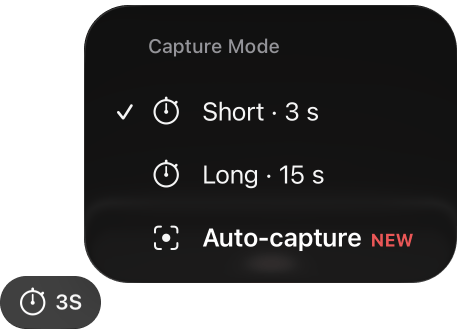
Select Auto-capture as the record mode. In the recording view, tap the record mode timer and choose Auto-capture. The red record button changes to a gray status indicator.
- Have the athlete step into frame. When the athlete is detected, the indicator turns green. Auto-capture is now ready.
- Perform one rep and wait for the chime. The athlete performs a single rep. When the rep is detected, the clip is trimmed and queued for upload, and a chime plays. The chime means the app is ready for the next rep.
- End the session when you’re done. As long as auto-upload is enabled (it is by default), every clip uploads on its own, so you don’t need to interact with the device until the assessment is finished.
Reading the status indicator

Standby
Auto-capture is waiting for an athlete to step into frame.

Ready
The indicator turns green when an athlete is in frame. Reps are detected automatically.

Captured
After each rep, the clip is trimmed and queued for upload. The chime means the next rep is ready to capture.
How auto-capture works
Auto-capture runs entirely on your mobile device in real time. It follows the same three phases for every movement.1. Tracking the athlete
While auto-capture is on, the app tracks the athlete’s pose throughout the video. Movement is measured relative to the athlete’s size in the frame, so the same detection works whether the athlete is close to the camera or farther away. If more than one person is visible, auto-capture follows the largest person in the frame, usually the athlete closest to the camera. Detection only starts once the athlete is framed large enough to be tracked reliably. If they’re too small in the shot, the indicator may stay in standby or reps may be missed.2. Recognizing a rep
Each supported movement has its own detector, tuned to the pattern of that movement. Rather than reacting to any fast motion, the detectors gate check the athlete’s movement. A rep is only captured when all of checks line up. A few examples:- Hitting focuses on high speed wrist motion
- Pitching looks for a knee lift followed by a fast wrist motion, so warm-up throws and casual arm movements are less likely to trigger a capture.
- Jump looks for drop in hip position followed by an increase above baseline.
3. Framing the clip
The app records continuously in the background, creating a rolling buffer. When it identifies the key moment of a rep, it waits a bit and then saves the clip from the buffer. The clip includes the time leading up to the key moment, not just what happens after it. Each detector is custom-built to include motion before and after the key moment, so the full movement is recorded. For a 3-second clip, that means: Note: Auto-captured clips are timestamped with the first frame of the clip for each individual rep.Tips for reliable auto-capture
The standard tips for high-quality motion capture all still apply. These matter most for auto-capture:Frame the athlete large enough
Frame the athlete large enough
Auto-capture only starts looking for reps once the athlete is big enough in the frame.
Follow the in-app setup distances rather than placing the camera farther back.
Keep the whole body in frame for the entire rep
Keep the whole body in frame for the entire rep
If possible, do some reps before you start to confirm no body parts leave the frame.
Keep other people out of the shot
Keep other people out of the shot
Auto-capture follows the largest person in view.
However people close to the athlete or walking through the frame can still cause missed or false captures.
Do one rep at a time
Do one rep at a time
Each clip should contain a single movement.
If one rep is missed, wait at least 5 seconds between reps.
Use even lighting and avoid backlighting
Use even lighting and avoid backlighting
Blurry or dark frames at the key moment are a common reason reps are missed.
Avoid setting up with a bright window or light source behind the athlete.
Prefer fitted, lighter-colored clothing
Prefer fitted, lighter-colored clothing
All-black or baggy outfits make it harder to locate the athlete’s joints.
Keep the device steady and charged
Keep the device steady and charged
Use a solid tripod, and keep the battery above 50%.
iOS may change the frame rate to save power when the battery runs low.
Supported movements
As of October 2026, auto-capture is available for the following movements:
We’re working on adding more movements and will update this page as they become available.
Movement-specific tips
Hitting (baseball and softball)
Hitting (baseball and softball)
- For single camera, use the face-on camera view. Detection is most accurate face-on.
- Use portrait orientation, which frames the athlete better.
- Keep the bat in frame from the load all the way through the finish.
- Slow, deliberate motions like raising the bat can occasionally trigger a capture. Have the athlete settle into their stance before starting auto-capture.
Pitching (baseball)
Pitching (baseball)
- Make sure the full leg lift stays in frame. The detector relies on seeing the stride leg rise.
- Landscape orientation generally works best for pitching.
Jump (countermovement and single-leg)
Jump (countermovement and single-leg)
- Record in portrait orientation.
- If in dual camera, use offset angles of 45° to each side of the athlete works best. A full side view or straight front-on view also works.
- Leave enough headroom that the athlete stays in frame at the top of the jump.
- If a rep is missed, have the athlete step out of frame and back in. This resets auto-capture for the next attempt.
Squat (bodyweight, overhead and single-leg)
Squat (bodyweight, overhead and single-leg)
- For overhead squats, make sure the raised arms stay in frame at the top.
- Perform one squat per clip and wait for the chime before the next rep.
- If multiple reps are missed, have the athlete step out of frame and back in resets auto-capture for the next attempt.
Troubleshooting
The indicator stays in standby
The indicator stays in standby
The athlete isn’t being detected. Check that they’re fully in frame and large enough in the shot, and that the lighting isn’t too dark or backlit.
Reps aren't being captured
Reps aren't being captured
- Move the camera closer, or check that the athlete fills more of the frame.
- Make sure the whole movement stays in frame.
- Improve the lighting. Blurry frames at the key moment are a common cause.
- Make sure the athlete waits for the chime between reps.
Clips are captured without a real rep
Clips are captured without a real rep
- Check for other people moving near the athlete or through the frame.
- Practice swings, warm-up throws or slow set-up motions can sometimes look like a rep. Don’t start auto-capture mode until you’re ready for full-intent movements.
- Make sure you are using the latest version of the Uplift Capture app.
The start or end of the movement is cut off
The start or end of the movement is cut off
Athletes with an unusually long wind-up may start slightly before the clip begins. If this happens regularly, contact support and tell us more about your situation.