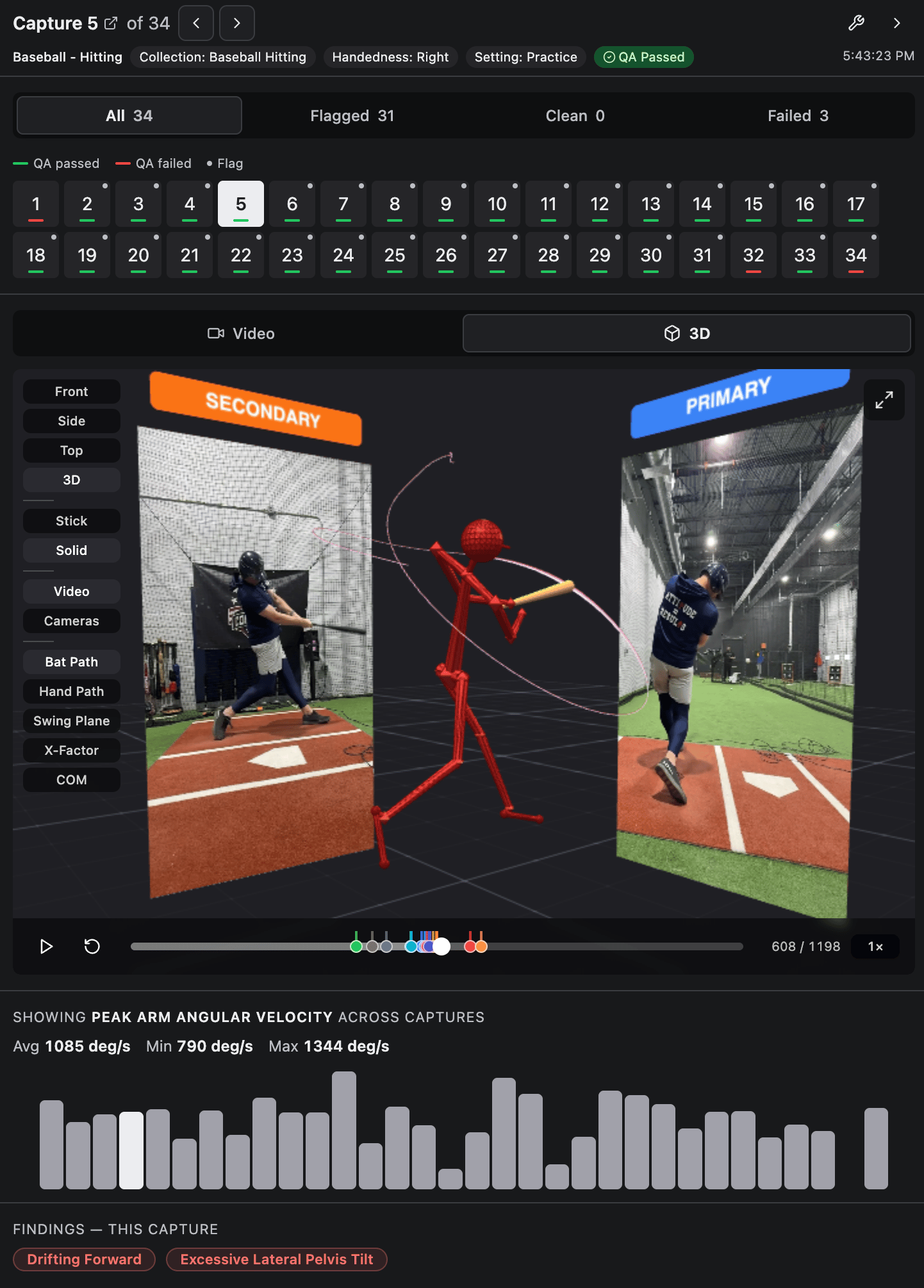
- Assessment summary: Basic information like athlete, date, and status; plus quick summary metrics.
- Signals: Insight-level results view surfacing strengths, focus areas, and drill recommendations.
- Breakdown: Data-focused results view with charts and metrics.
- Details: Info on each capture, devices used, QA status, and more.
- Capture viewer: Video + 3D interactive view of each capture, highlighting events and movement flags.
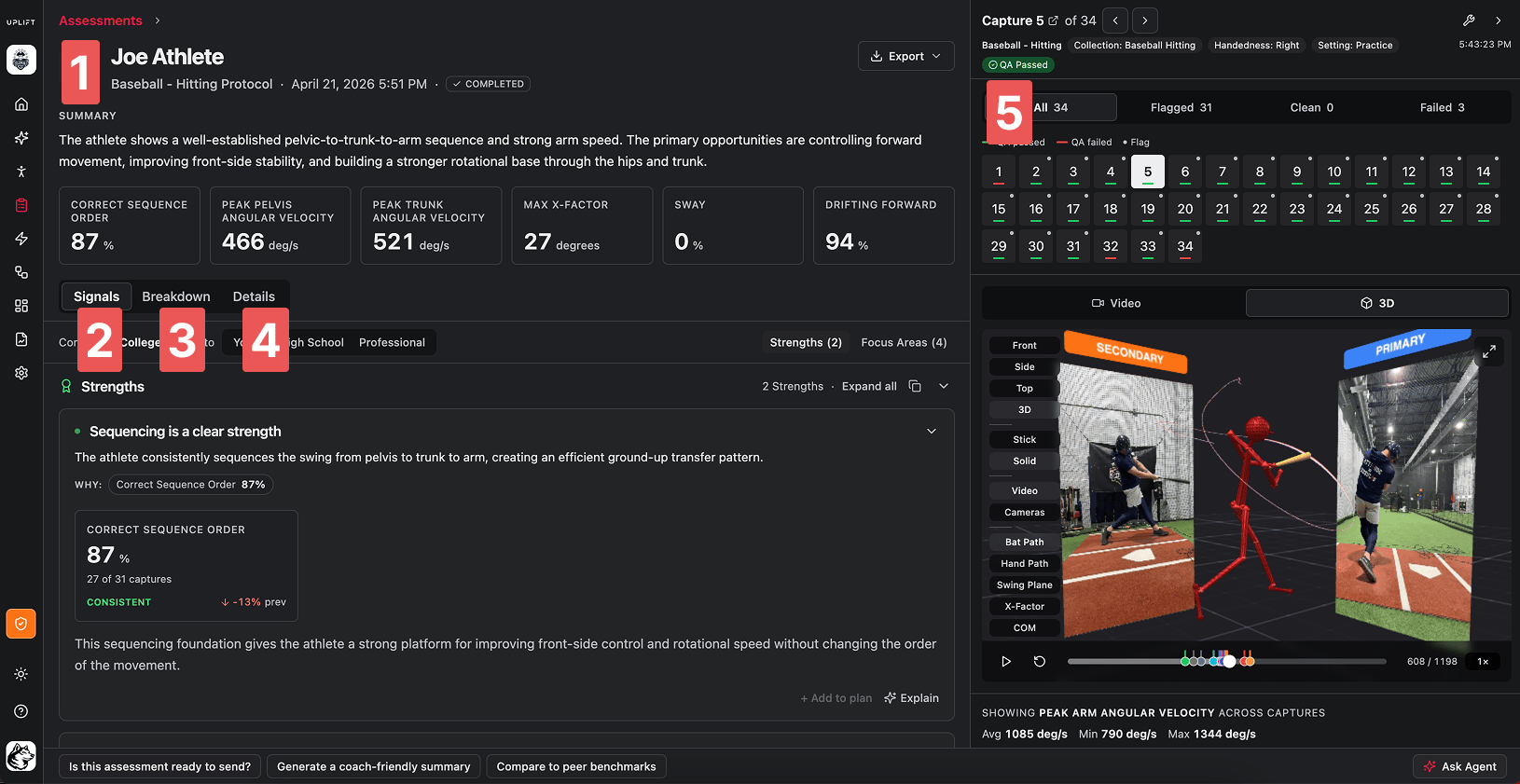
Assessment Summary
The assessment summary includes all the basic information about the assessment - the date, the athlete, the protocol - as well as a text summary. Many assessments also now have the most trackable metrics surfaced at the very top - things like kinematic sequence, jump height, or important movement flags. Below the summary are 3 tabs - Signals, Breakdown, and Details. Not every assessment has all 3; however, we’re working on getting every one of our most-used movements in these views.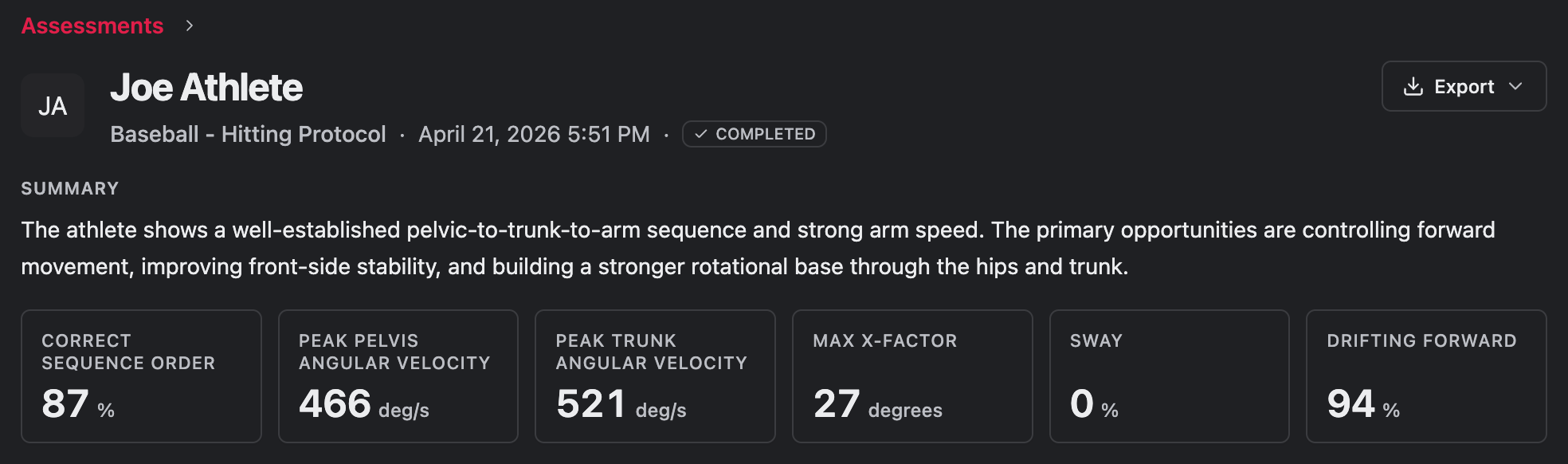
Signals
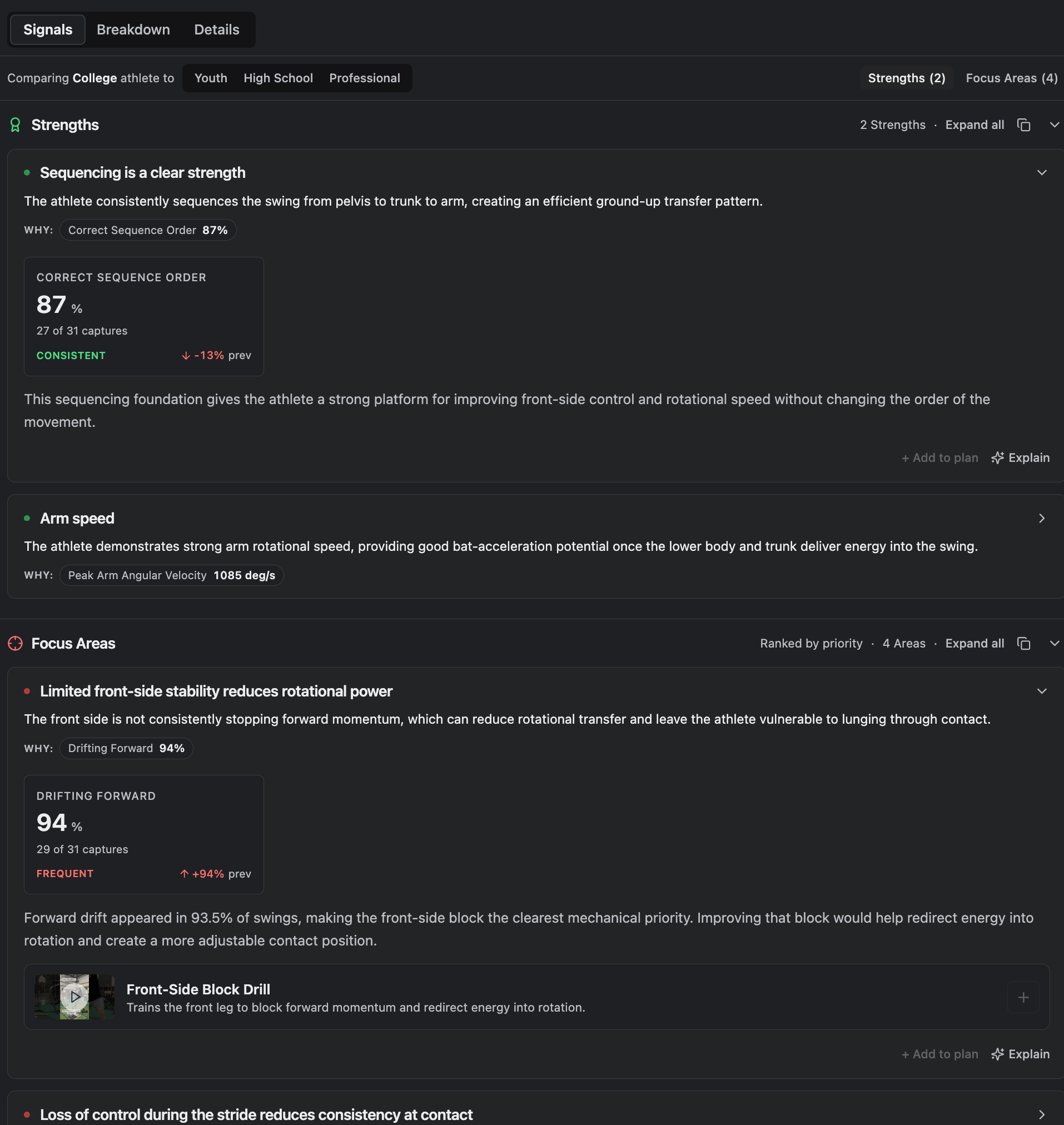
The first tab, Signals, is our AI-generated movement analysis. It reviews all the captures in an assessment and produces the following:- Strengths: what the athlete did well in their movements
- Focus Areas: movement patterns or mechanics they can correct or improve
- Drills: recommended drills or interventions to work on their focus areas. NOTE: movement assessment movements do not currently include drill recommendations.
Breakdown
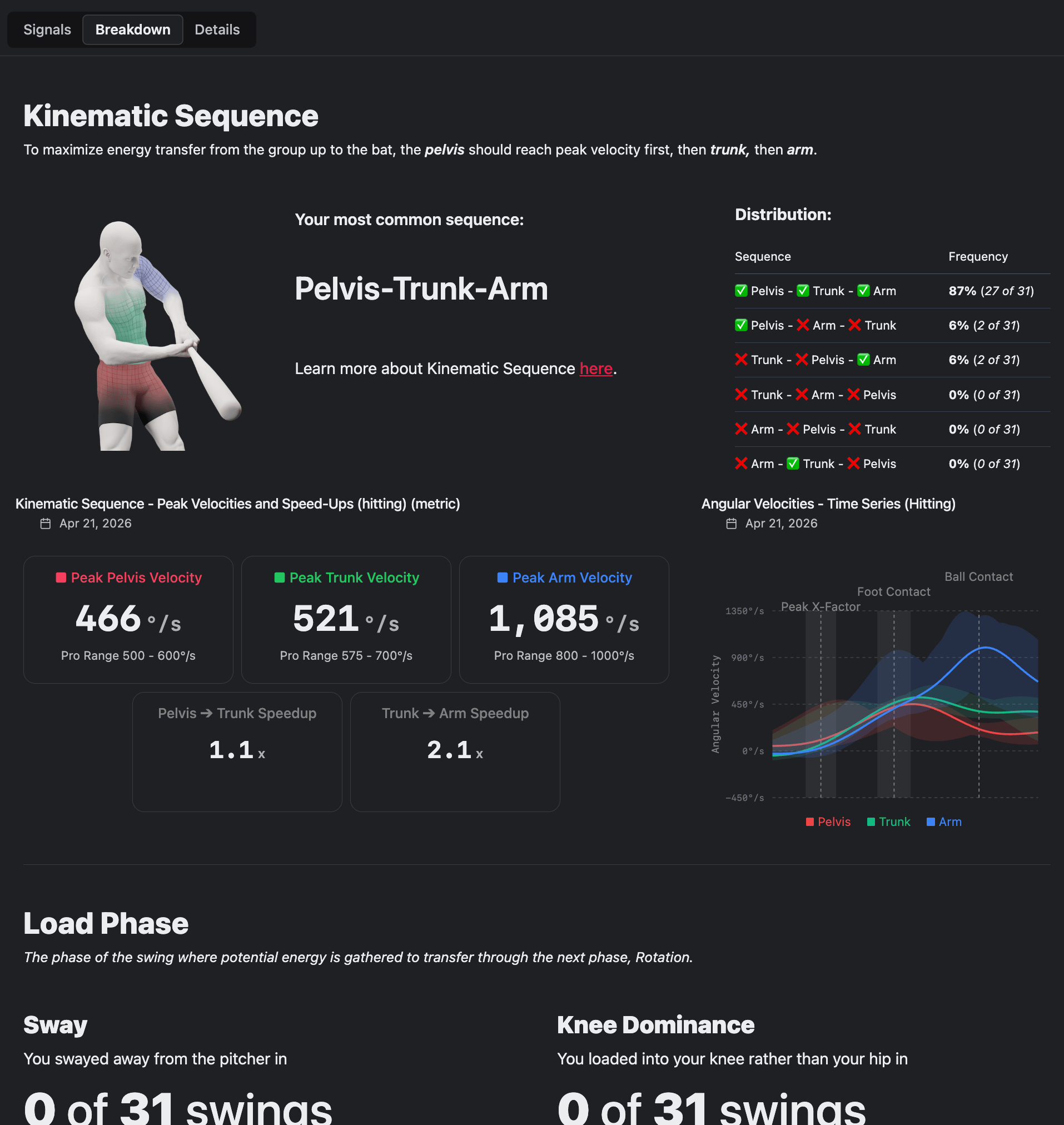
The Breakdown tab is a more data-centric look at the assessment results. Each movement has its own tailored report highlighting the most relevant data for that movement. A few examples include:- Baseball and softball: Kinematic sequence and peak velocities, trunk position, stride length
- Jumps and squats: Jump height, knee valgus, range of motion limitations
- All movements: whether the athlete got in any sub-optimal positions that can be corrected
Details
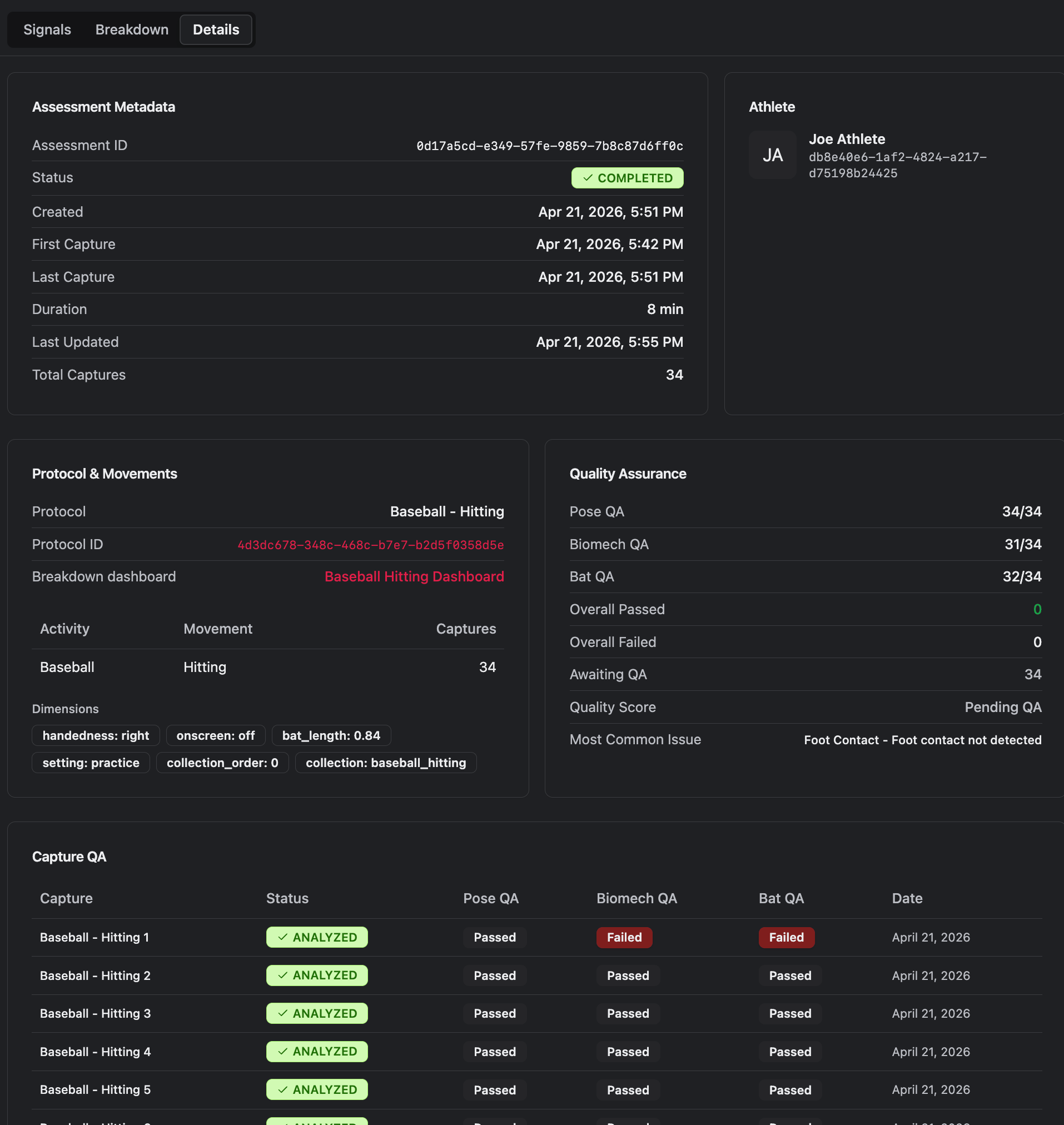
The Details tab contains information about the session, including:- Attributes like capture times, handedness, and session IDs
- Technical details like device models, average frame rates, and device orientation
- How many captures passed or failed QA, and why
Capture viewer
The panel on the right in the assessment view allows you to view any capture in full 3D along with each video. This viewer is a quicker way to explore the movement in 3D - along with movement flag indicators - without needing to load the full web visualizer.
- Quickly move between different captures
- See which captures triggered which movement flags (e.g. drifting forward, stiff knee landing)
- Play or scrub through the movement, viewing both video and 3D avatar
- Manipulate the 3D space or add annotations to really see athlete position at every moment
- Jump to annotated movement events on the timeline