> ## Documentation Index
> Fetch the complete documentation index at: https://docs.uplift.ai/llms.txt
> Use this file to discover all available pages before exploring further.
# Using Auto-Capture mode
> We've introduced auto-capture as a new capture mode available for one-camera Baseball Hitting assessments. Here's how it works.
Traditional recording modes in Uplift Capture have always used recording timers, and required you to tap to start recording. With Auto-Capture, you can now set up your camera and the app will detect the athlete's movement and automatically capture, trim, and upload a video for processing.
***Note:** As of July, 2026, Auto-Capture is currently only available for one-camera Baseball Hitting assessments. We're working on expanding auto-capture support to more movements and will update this article with more supported movements in the future.*
# What is Auto-Capture?
**Auto-capture** is a new recording mode that removes the need to manually tap the phone, a remote device, or a bluetooth remote to start recording a movement. Auto-capture constantly watches the video for the athlete's movement, and when detected, it clips a video of the movement and queues it for upload.
# How it works
Enable auto-capture by tapping on the record mode timer in the recording view, and selected Auto-capture. Please note this is only be available for one-camera baseball hitting. at this time.
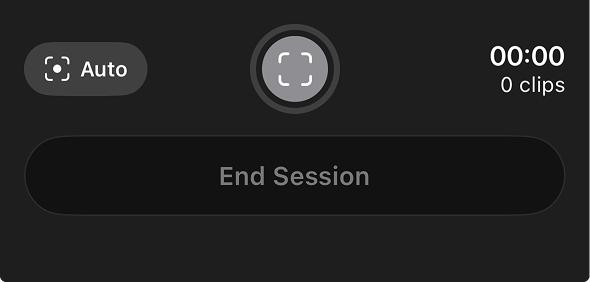
Once enabled, your typical red recording button will change to a gray indicator as seen below:
This status will change to indicate whether an athlete is detected in frame, and with indicate when a swing has been successfully detected and video captured.
Auto capture remains in standby until an athlete steps into frame.
The indicator turns green when an athlete is in frame. Swings will be automatically detected.
After each swing, the clip is trimmed and queued for upload. A chime means the next swing is ready to capture.
As long as auto-upload is enabled (it is by default), each clip will automatically be uploaded, meaning you don't have to interact with the device at all until the assessment is done.
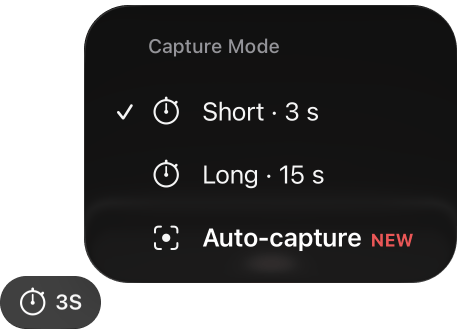 Enable auto-capture by tapping on the record mode timer in the recording view, and selected Auto-capture. Please note this is only be available for one-camera baseball hitting. at this time.
Once enabled, your typical red recording button will change to a gray indicator as seen below:
Enable auto-capture by tapping on the record mode timer in the recording view, and selected Auto-capture. Please note this is only be available for one-camera baseball hitting. at this time.
Once enabled, your typical red recording button will change to a gray indicator as seen below:
 This status will change to indicate whether an athlete is detected in frame, and with indicate when a swing has been successfully detected and video captured.