> ## Documentation Index
> Fetch the complete documentation index at: https://docs.uplift.ai/llms.txt
> Use this file to discover all available pages before exploring further.
# Connecting and using a Remote Control device
> Learn how to connect an iPad or iPhone as a remote control device to facilitate your Uplift Capture assessments.
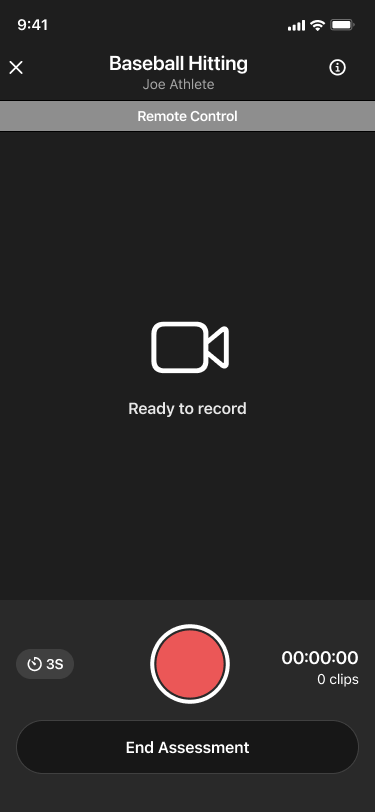
The **Remote** **Control** feature lets you manage your Uplift capture session from a third iOS device, without touching your camera devices. Once your session is underway, you can start and stop recordings, switch between athletes, and end the session all from a separate iPhone or iPad.
This video walks through connecting and facilitating an assessment using a remote control device:
# Requirements
1. An iPhone or iPad with the Uplift Capture app installed
2. Logged into the same Uplift account as your camera devices
3. Connected to the same network as your camera devices
# Pairing a Remote Control
[Pairing is initiated from your primary device only](../capture-app-configuration/pairing-syncing-and-internet-connectivity-in-uplift-capture.md). Do not start pairing from any other device.
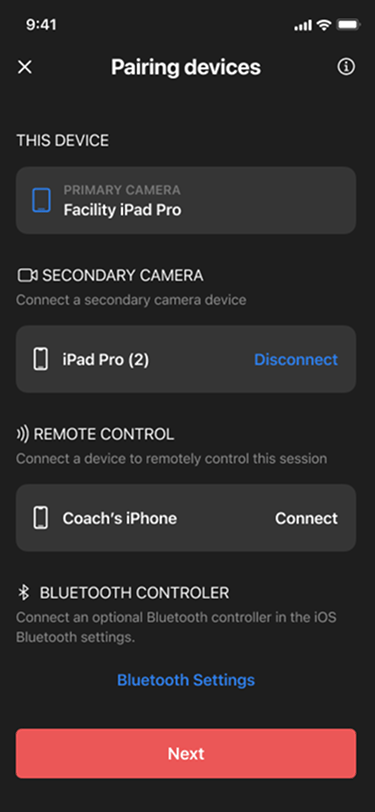
When you begin pairing on your primary device, you'll see an option to pair your secondary camera device and also pair a Remote Control device. Any iPhone or iPad on the same network, logged into the same account, and running Uplift Capture will appear as a selectable device.
Select your remote control device and complete pairing as normal.
# What You Can Do From the Remote
Once a session is started from the primary device, your remote control can:
* Start and stop recordings
* Switch between the short and long recording timer
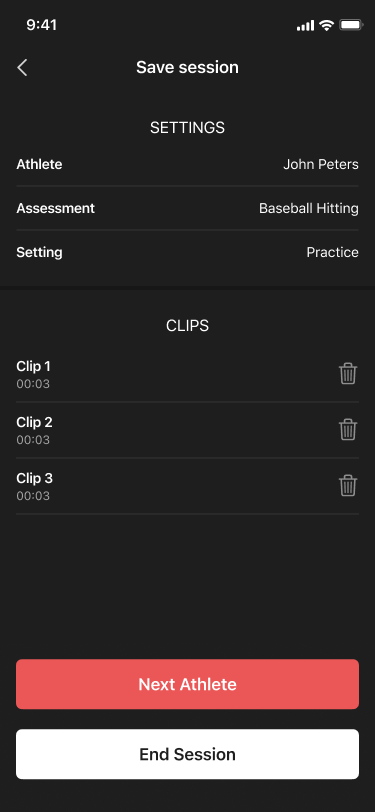
* Switch athletes (without changing setup, movement, or handedness)
* End the session
Note: The session must always be initiated from the primary device. The remote takes over once the session is live.
# Switching Athletes
If you are capturing multiple athletes with the same setup, movement, and handedness, you can switch athletes and continue capturing without ever returning to your camera devices. This is one of the most useful applications of Remote Control, especially when working in a batting cage or bullpen.
# Range and Connectivity
Keep your remote device within a reasonable range of your camera devices; moving too far away may cause it to disconnect.
If your remote device disconnects during a session, the session will continue uninterrupted on your camera devices. You can reconnect the remote and resume controlling the session.
***
***Tips***
* Only initiate pairing from your primary device.
* The remote is a control device only — your two camera devices still handle all capture.
* The remote works for any capture session, regardless of sport or movement type.