> ## Documentation Index
> Fetch the complete documentation index at: https://docs.uplift.ai/llms.txt
> Use this file to discover all available pages before exploring further.
# Download and install the Uplift Capture app
> Follow these instructions for downloading and installing the Uplift Capture mobile app on your capture devices, and set app permissions.
Once you've [created an account](./create-your-uplift-account) and chosen a strong password, you can proceed to download and log into the app.
# Download and install from the App Store
[Download the Uplift Capture app from the iOS app store](https://apps.apple.com/us/app/uplift-capture/id1501907981) on both devices you'll be using.
Uplift Capture must run on two of the same devices from [our supported device list](./supported-capture-devices). Please ensure you are installing the app on supported devices.
 # Open the app and log in
Once the app is downloaded and installed on both devices, open the app on both devices, **and log in using the same username and password you used to [create your account](./create-your-uplift-account)**.
# Open the app and log in
Once the app is downloaded and installed on both devices, open the app on both devices, **and log in using the same username and password you used to [create your account](./create-your-uplift-account)**.
Make sure to do this on both devices.
 # Accept app permissions
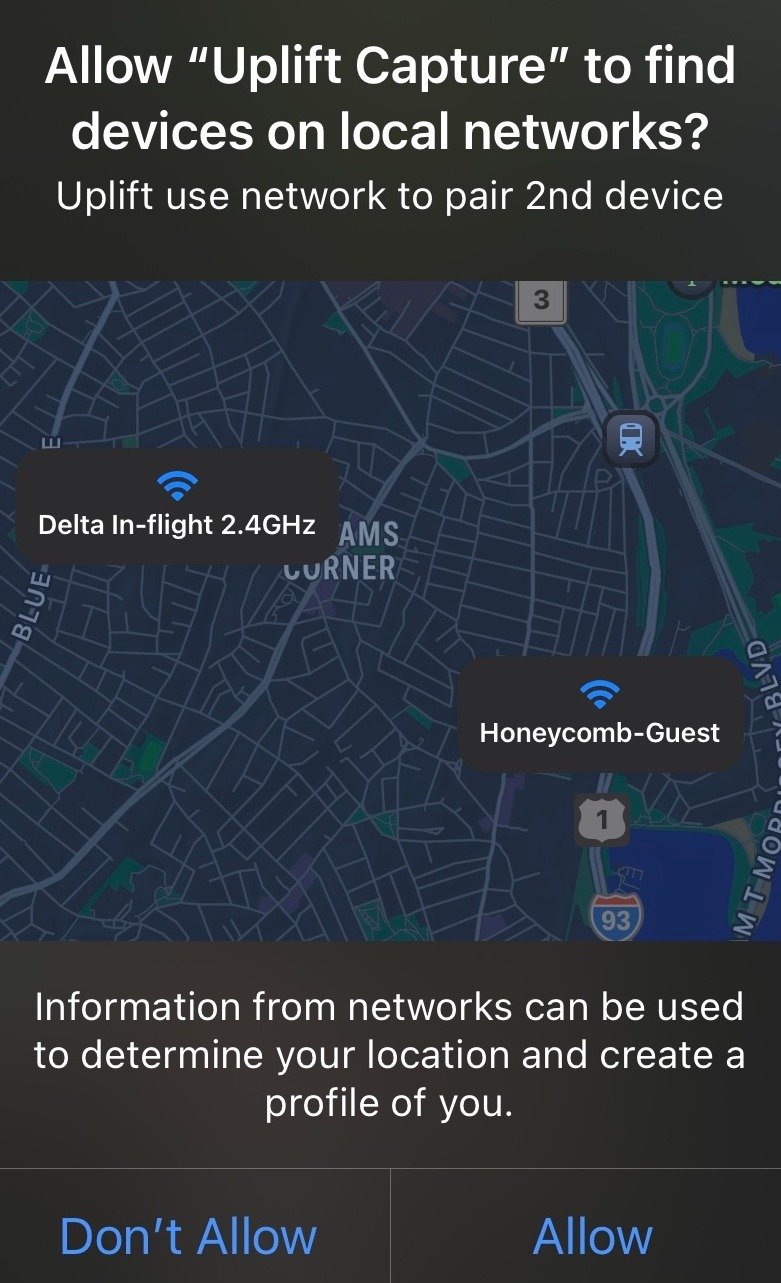
Upon logging in and opening the app, you will be asked to accept permissions to find devices on your local network.
# Accept app permissions
Upon logging in and opening the app, you will be asked to accept permissions to find devices on your local network.
**Please allow these permissions;** they're important to allow both devices to discovery, pair, and sync with one another.
 **Note:** if you encounter this screen after logging in, your account has not yet been activated. Make sure you've requested a trial in the web platform, and/or let your Uplift contact know the email address you used to create your account so we can activate it for you.
 Once your account is activated, you will be able to see the full functionality within the app, and [start your first Capture assessment](../performing-an-assessment/before-running-your-first-assessment.md).
You're now ready to begin capturing movement in full 3D!
Once your account is activated, you will be able to see the full functionality within the app, and [start your first Capture assessment](../performing-an-assessment/before-running-your-first-assessment.md).
You're now ready to begin capturing movement in full 3D!